



-


-
Business solutions
- How to speed up your WordPress site
How to speed up your WordPress site
Slow aWordPress websites are a common problem.
Here's an example of pages in PageSpeed Insights for mobile devices.
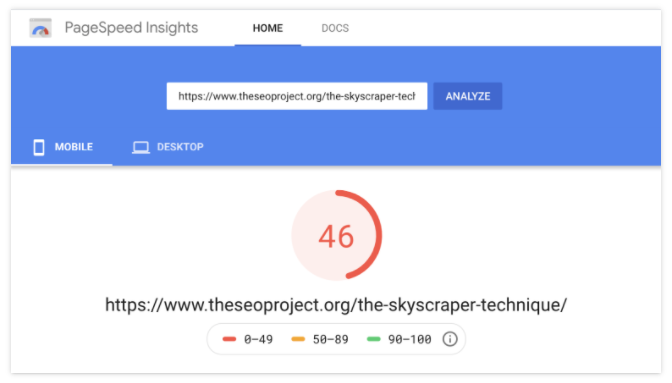
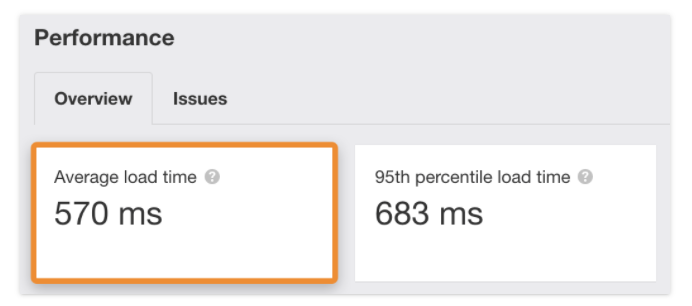
If we run the entire website through the Ahrefs site audit, which shows page load times for all pages, we can see that this is not the only page that is slow to load. Almost no one loads as fast as the average load time of 570ms.
Here's the same page after about 20 minutes of optimising the page load speed:
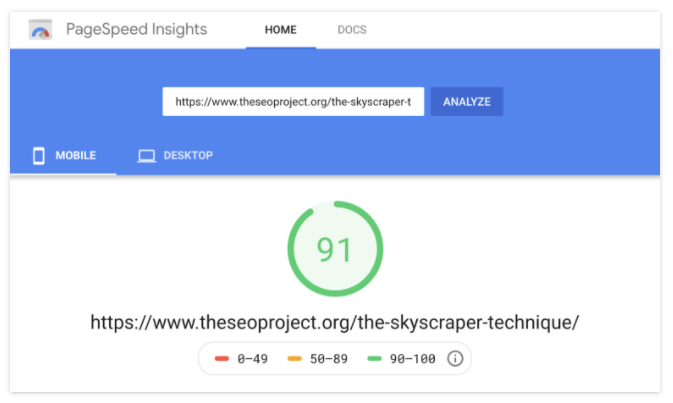
The difference is significant. The PageSpeed Insights score is almost perfectly accurate, and every page loads pretty fast. In this guide, we'll show you exactly how to do that in a few simple and easy steps.
Uninstall unused plugins
Switch DNS providers to Cloudflare
Install a caching plugin
Minimise your code
Merge CSS and JavaScript files
Eliminate resources that block rendering
Lazy loading of images and videos
Optimise Google Fonts
Enable preloading
Use CDN
Optimise your images
Important!!!
Many of the optimisations recommended below use WPRocket, a paid plugin to speed up your WordPress site. We try to mention free alternatives where possible, but it's important to note that plugins can sometimes conflict with each other and cause problems. You should always check how they affect your site in a test environment before making any changes to your existing site.
More specifically on a few steps:
Remove unused plugins
If your new WordPress website is running slow, chances are you've probably installed a bunch of plugins that you haven't used in years. Some of them can affect your page load speed, so it's a good idea to deactivate and remove anything you don't need to begin with. Just be careful when doing so. If you're not sure if something is necessary, leave it alone for a while.
Switch DNS providers to Cloudflare
Websites are files on hard drives (servers) connected to the internet. And every device connected to the Internet has an IP address (for example, 123.123.12.1). Because IP addresses are hard to remember, domain names are mapped to IP addresses using DNS, which stands for Domain Name System. You can think of it as a phone book on the Internet. When you type a domain into your browser, a DNS lookup is performed to find the IP address of the server. But here's the thing: most people use free DNS providers from their domain registrar, which is usually slow. If that's you, switch to a faster DNS provider, such as Cloudflare. To do this, sign up for a free Cloudflare account. Click "Add Site", enter your domain name and click the button.
Install the caching plugin
Caching is the process of temporarily storing files to deliver them to visitors more efficiently.
There are two main types:
Browser caching: stores "shared" files, such as logos, on users' hard drive so they don't have to re-download them on repeat visits.
Server-side caching: saves a fully built, "static" version of the page on the server, so it doesn't need to be rebuilt every time a new visitor requests it.
WP Rocket makes it easy to enable caching. Just purchase, install and activate it. Basic caching (server and browser) is enabled by default. If your site is not responsive, go to the caching settings and check the box to enable caching for mobile devices as well.
Shorten your code
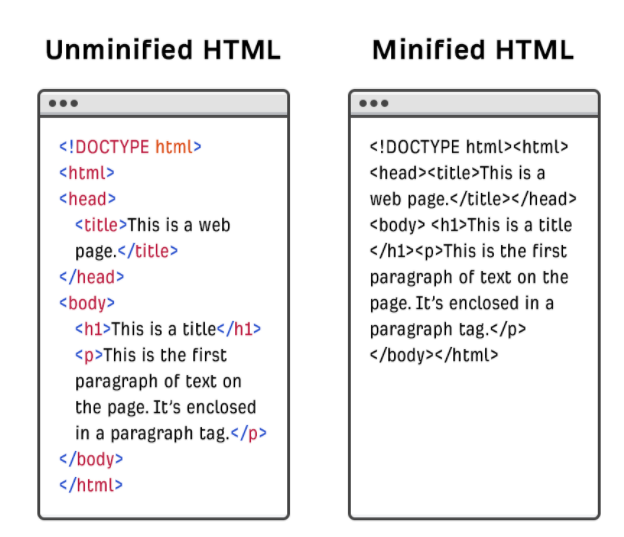
Minifying removes spaces and comments from your code to reduce file size. And smaller files reduce load times.
Combine CSS and JavaScript files
Most WordPress websites include multiple CSS and JavaScripts files. Some are for themes, some are for plugins, and you may have your own too.
Merging these files can speed things up, but it depends on your server settings.
With HTTP / 1.1, CSS and JavaScript files are loaded sequentially. This means that one file must be fully loaded before the next one starts loading.
With HTTP / 2, files are loaded simultaneously. This means that multiple CSS and JavaScript files can start loading at the same time.
If your server uses HTTP / 1.1, merging files speeds things up because fewer files need to be loaded. If it uses HTTP / 2, file merging won't necessarily make a big difference because the files can load at the same time anyway.
Eliminate resources blocking rendering
Rendering is the process of turning code into a visible web page. The key word here is "visible" because a web page doesn't always have to fully load before it becomes visible. For this reason, it makes sense to prioritise resource loading to the content at the top of the page. You can do this by postponing the loading of non-critical CSS and JavaScript files needed for content "at the bottom of the page" until later. To do this in WPRocket, check the "Load deferred JavaScript" and "Optimise CSS delivery" checkboxes.
All of the above works well for any site. However, it's important to remember that every WordPress configuration is different. You may have more plugins, a clunkier theme, slower hosting, or more third-party tracking scripts, all of which slow down your site. If after these optimisations your page speed is still far from ideal, then you probably need to have custom work done on your site. So it's worth hiring a qualified developer or page speed expert to take a closer look at things. Or, if you want more information on specific issues, contact AVSEO - don't keep your potential customers waiting.
ANY QUESTIONS?